Administrative procedures and applications
Various changes to the study plan are accompanied by various administrative processes. Each process has clearly defined expressers and approvers. Therefore, the Electronic Study Department module was created to enable these processes to be handled electronically.
Notifications of new applications that need to be expressed or approved will be sent to your email address. This means that you do not need to check this module every day.
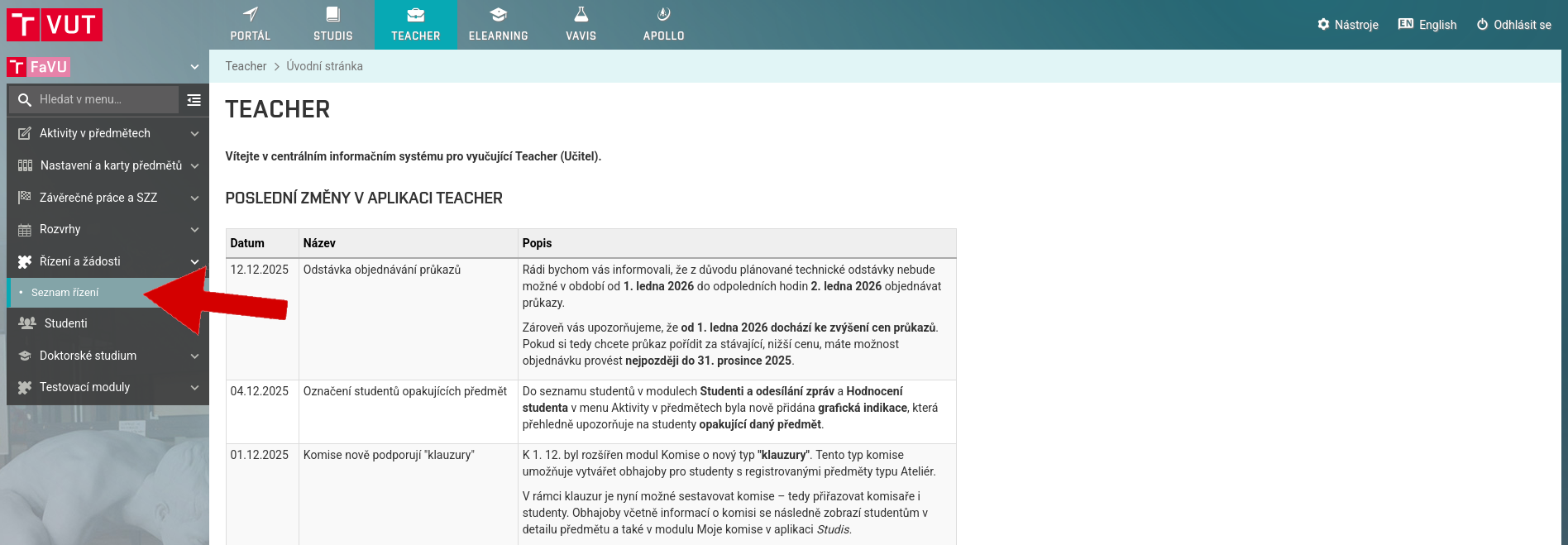
The applications themselves can be found in the Teacher application under the Proceedings and applications tab.
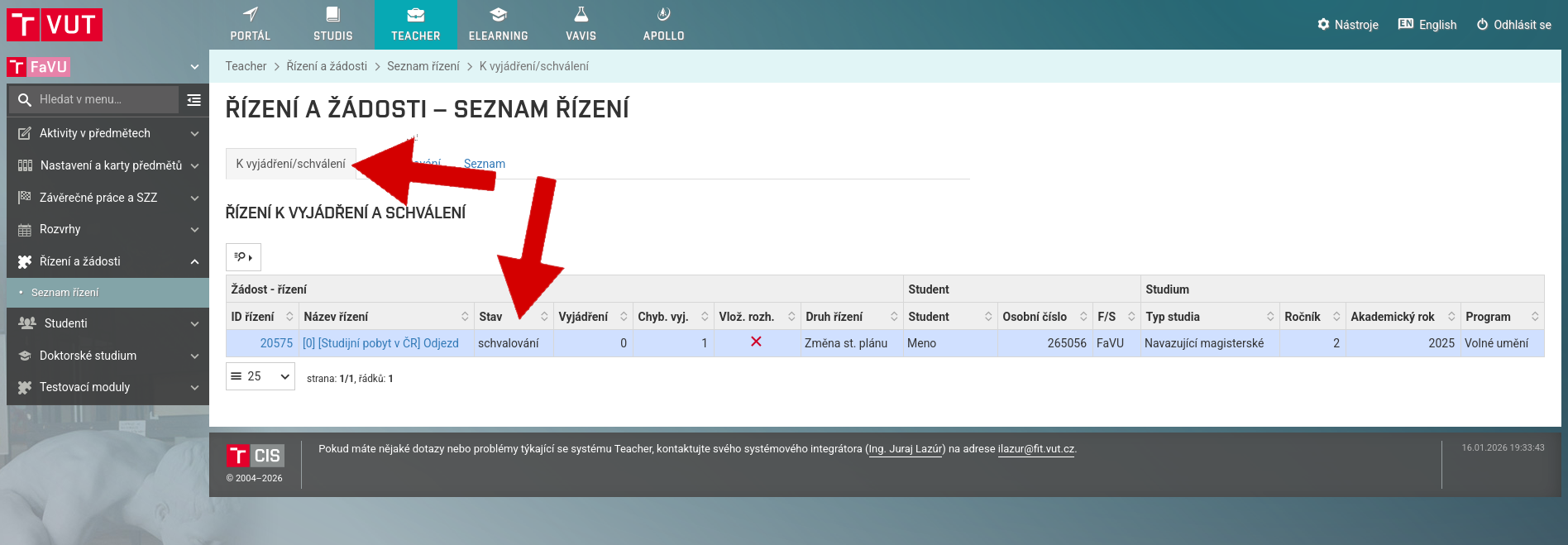
On the To comment/approve tab, you will find requests that are waiting for you. The goal is to keep the table on this tab always empty.
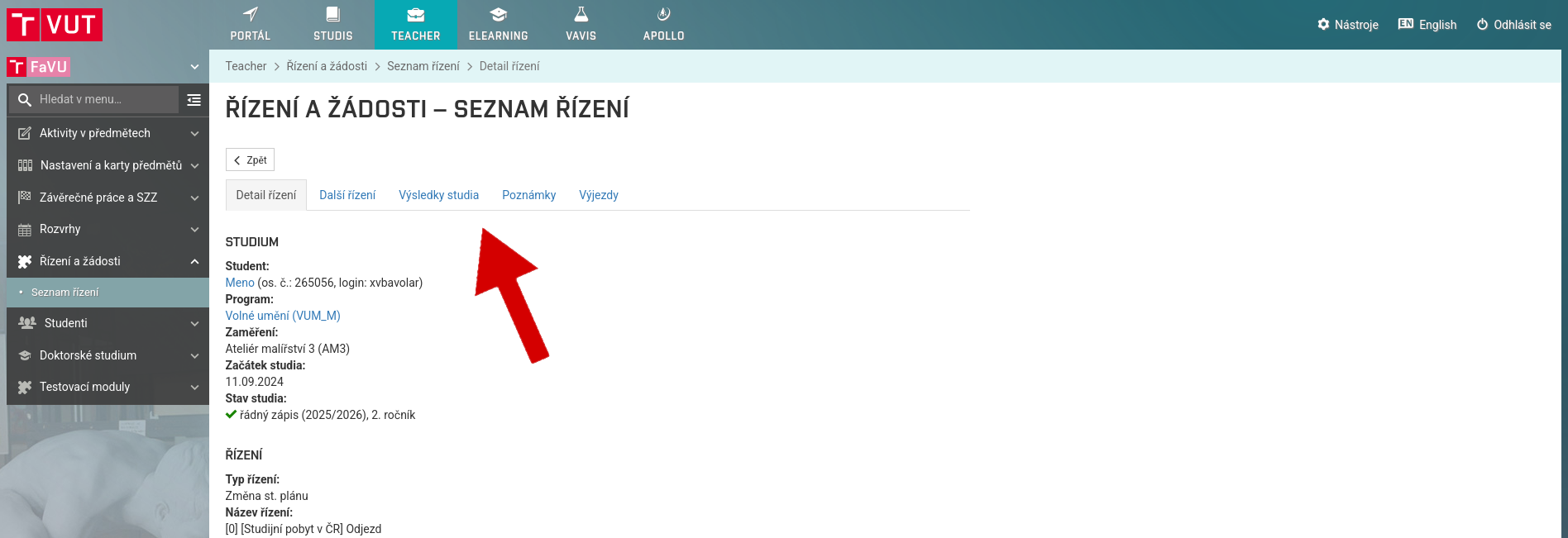
After opening a specific application, you will have access to various details about the applicant's studies.
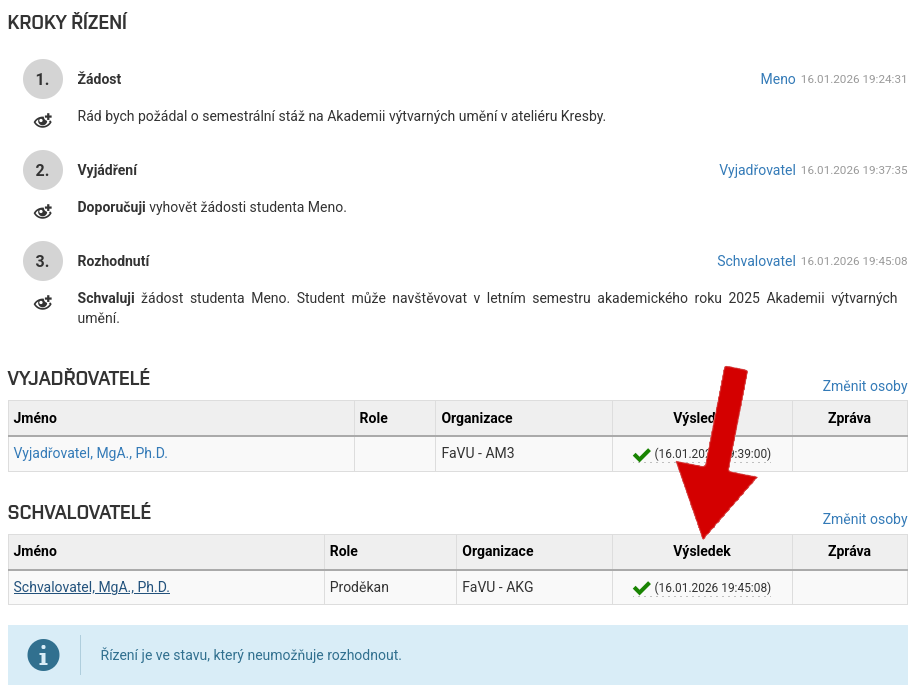
Below you will find a brief overview of what is expected of you in the request.

Depending on the type of request, you can be either a expressor or an approver.
Statement on the application
The statement on the application serves as a recommendation for approving or rejecting the application. As the reviewer, you are not responsible for the overall outcome of the application.
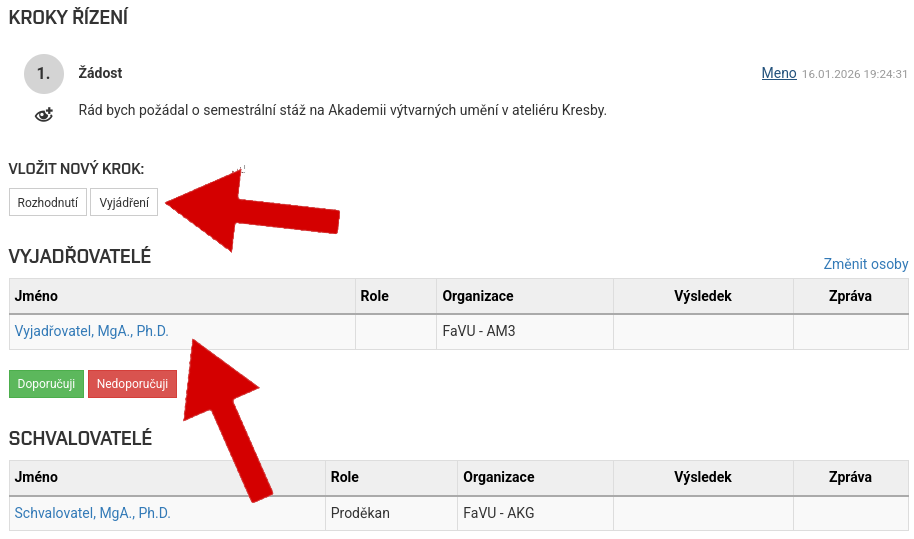
If you are listed as a reviewer in the request, you will see your name in the Expressors table.
To add a review, click the Review button.
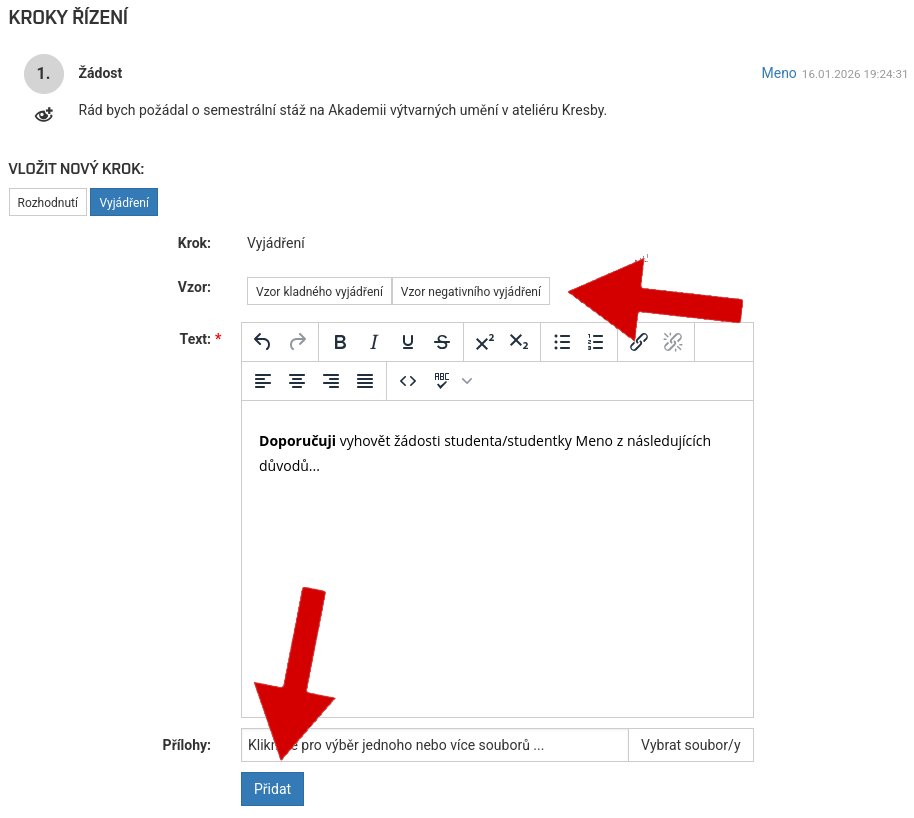
Enter your statement in the text field or use a predefined template.
Then click Add to save your statement.
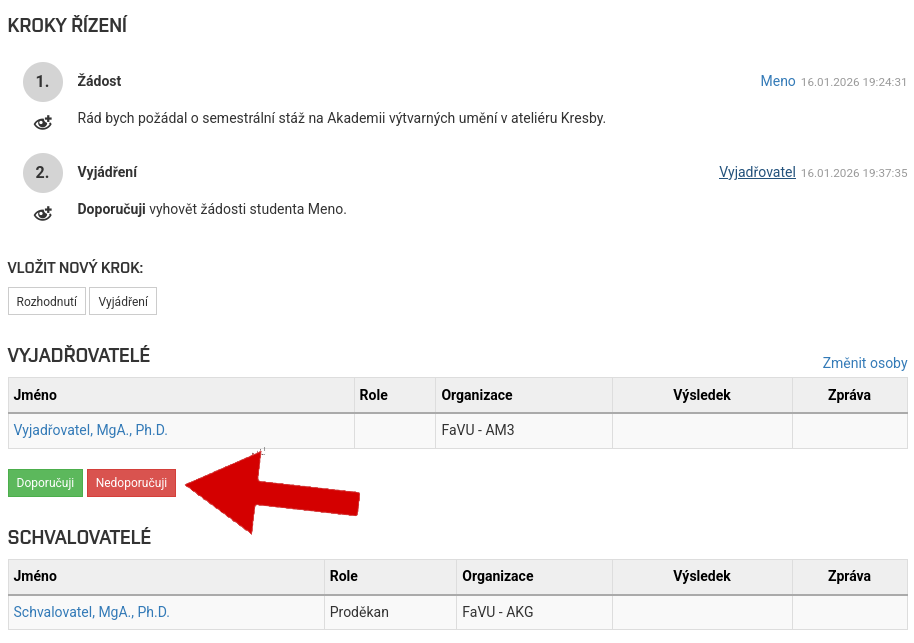
After entering your statement, click Recommend or Do not recommend according to your opinion.
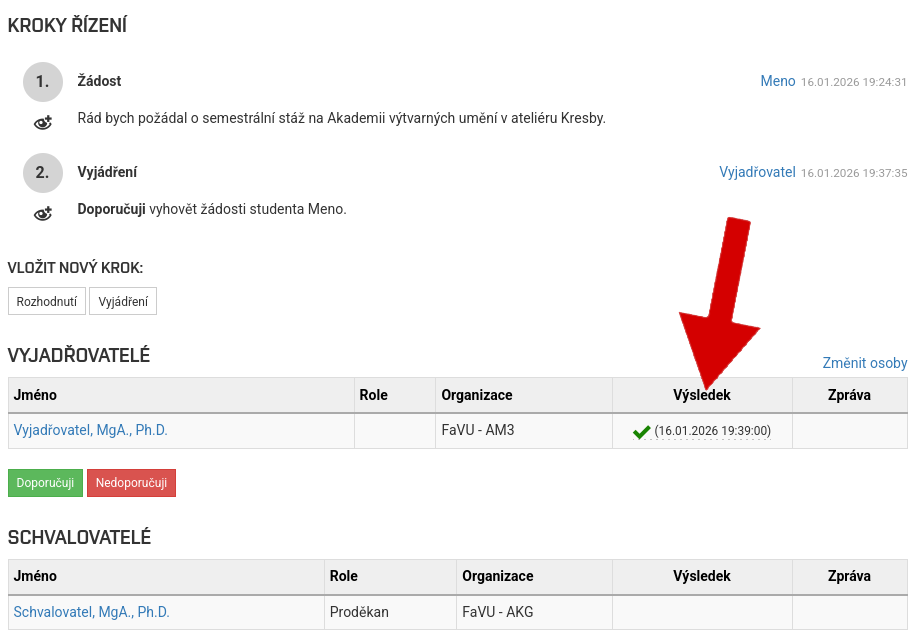
After entering your statement, a confirmation and date will appear next to your name, which means that the application is resolved from your point of view.
Approval of the application
The decision on the application is a binding decision on whether or not the student's application will be approved. In the case of multiple approvers, approval must be unanimous. Each approver therefore has the right of veto.
If you are listed as an approver in the application, you will see your name in the Approvers table.
To add a decision, click the Decision button.
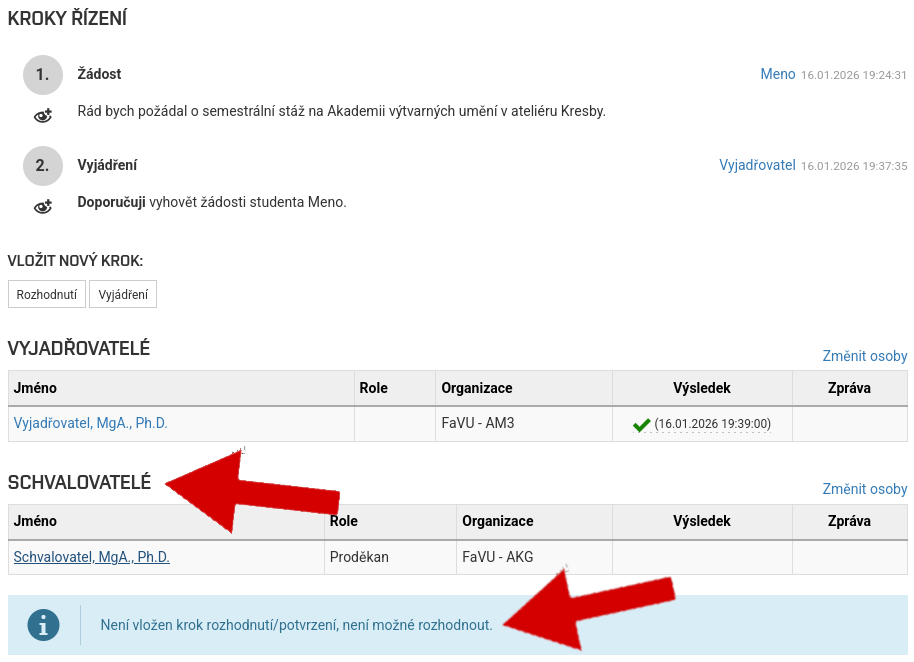
Enter your decision in the text field or use a predefined template.
Then click the Add button to save your decision.
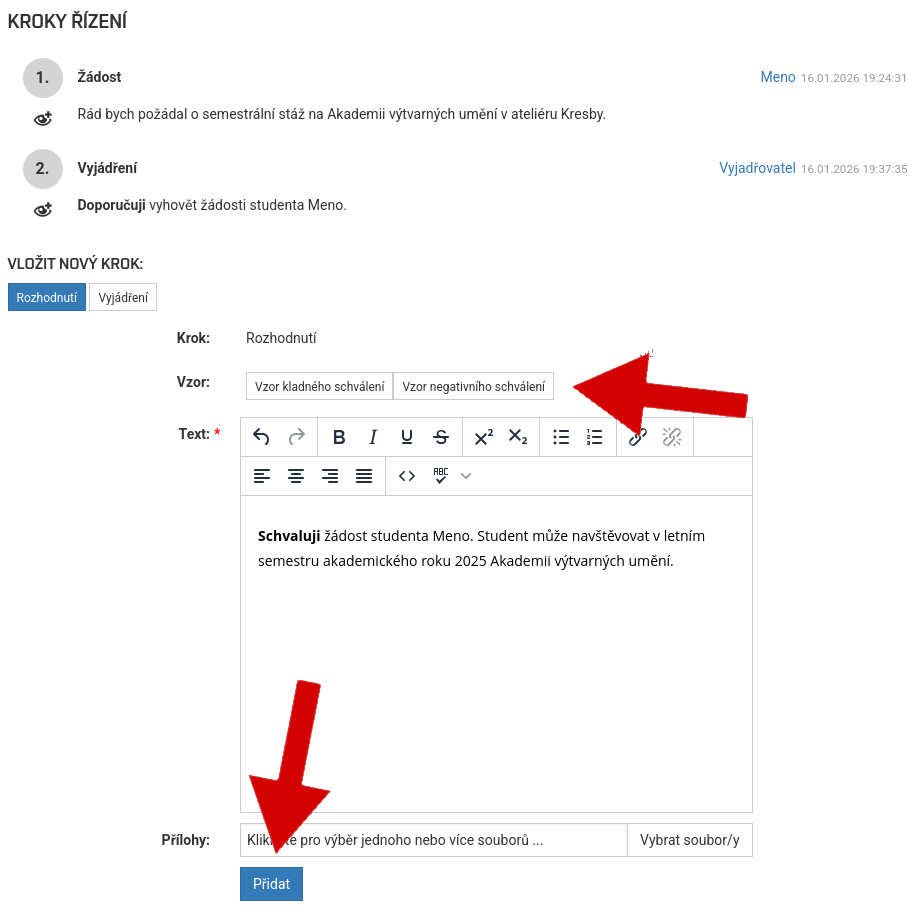
At this stage, you can still edit your decision by deleting it and entering it again.
By clicking the Approve or Reject button, you will make a final decision that cannot be changed.
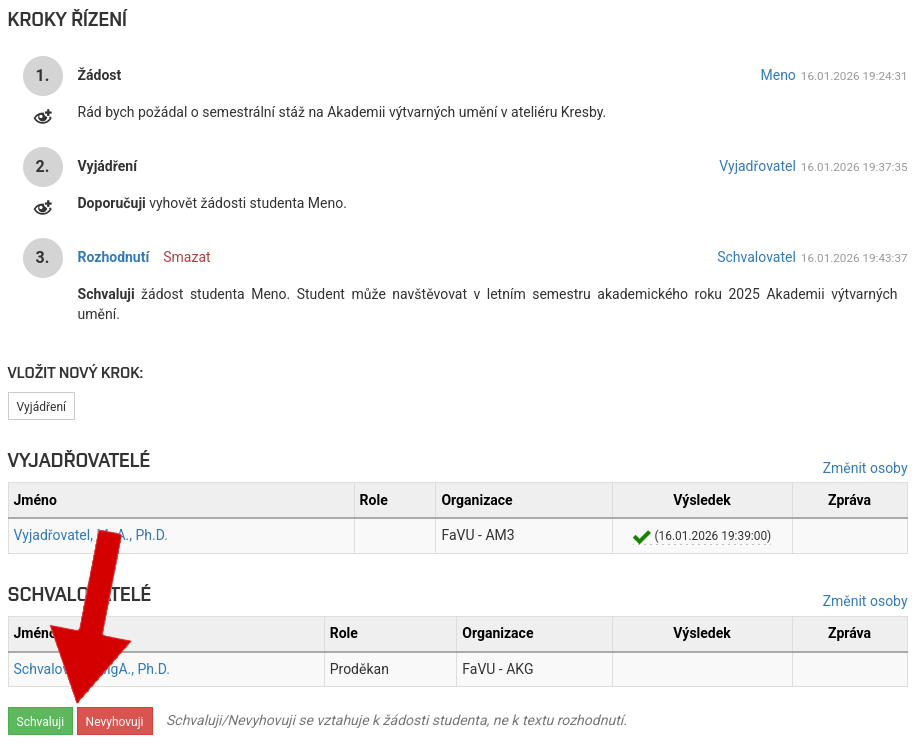
After entering your decision, a confirmation and date will appear next to your name, and the request will be resolved from your perspective.