
Records of working hours
Working hours reporting is one of the legal obligations of every employee. One of the ways of recording working time is keeping records in the BUT IS.
Log intro the app Intraportal
In the left menu, select the option Work, Records of working hours
On this basic screen you can see the current month and your reports. Before you use the module for the first time, it is a good idea to have set up a reporting template, which you can find under the Personal Presence Settings tab.
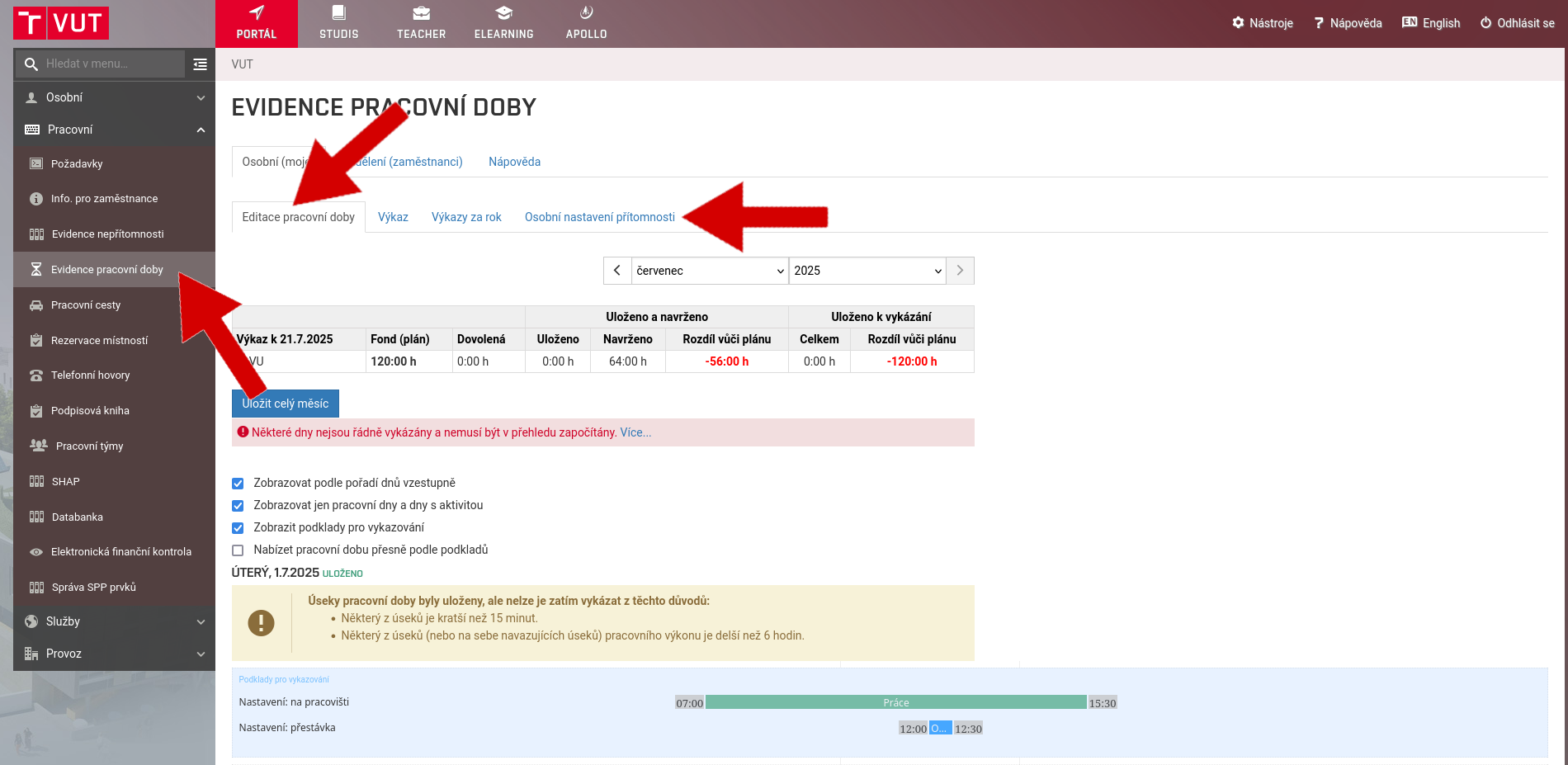
Personal presence settings
It is a good idea to set up a template for easier timesheet reporting. If you are employed on a standard full-time basis, the most convenient solution is to have one 8 and a half hour work block divided by a 30 minute break.
The standard is 2 blocks, work and break, repeated every working day.
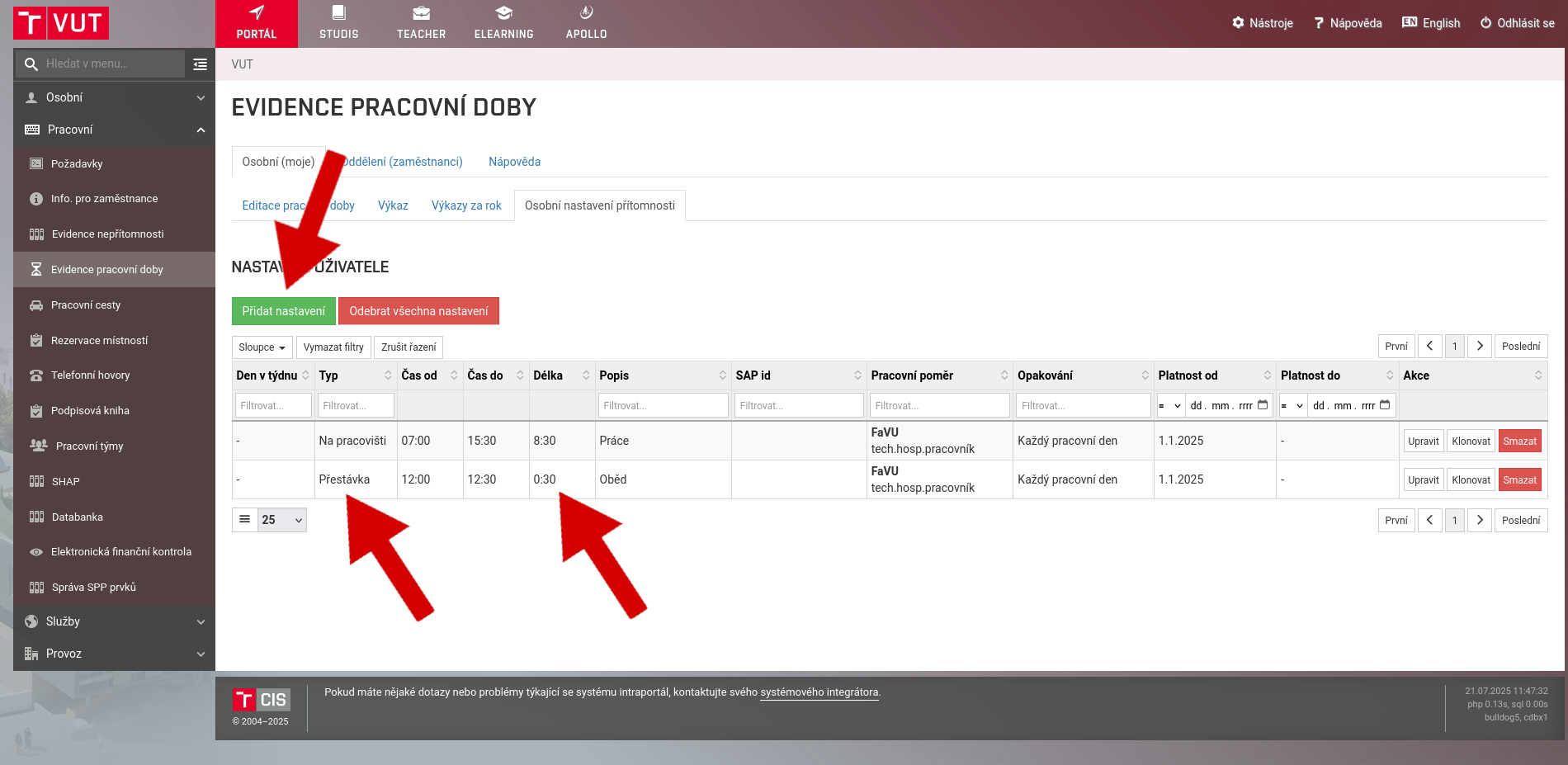
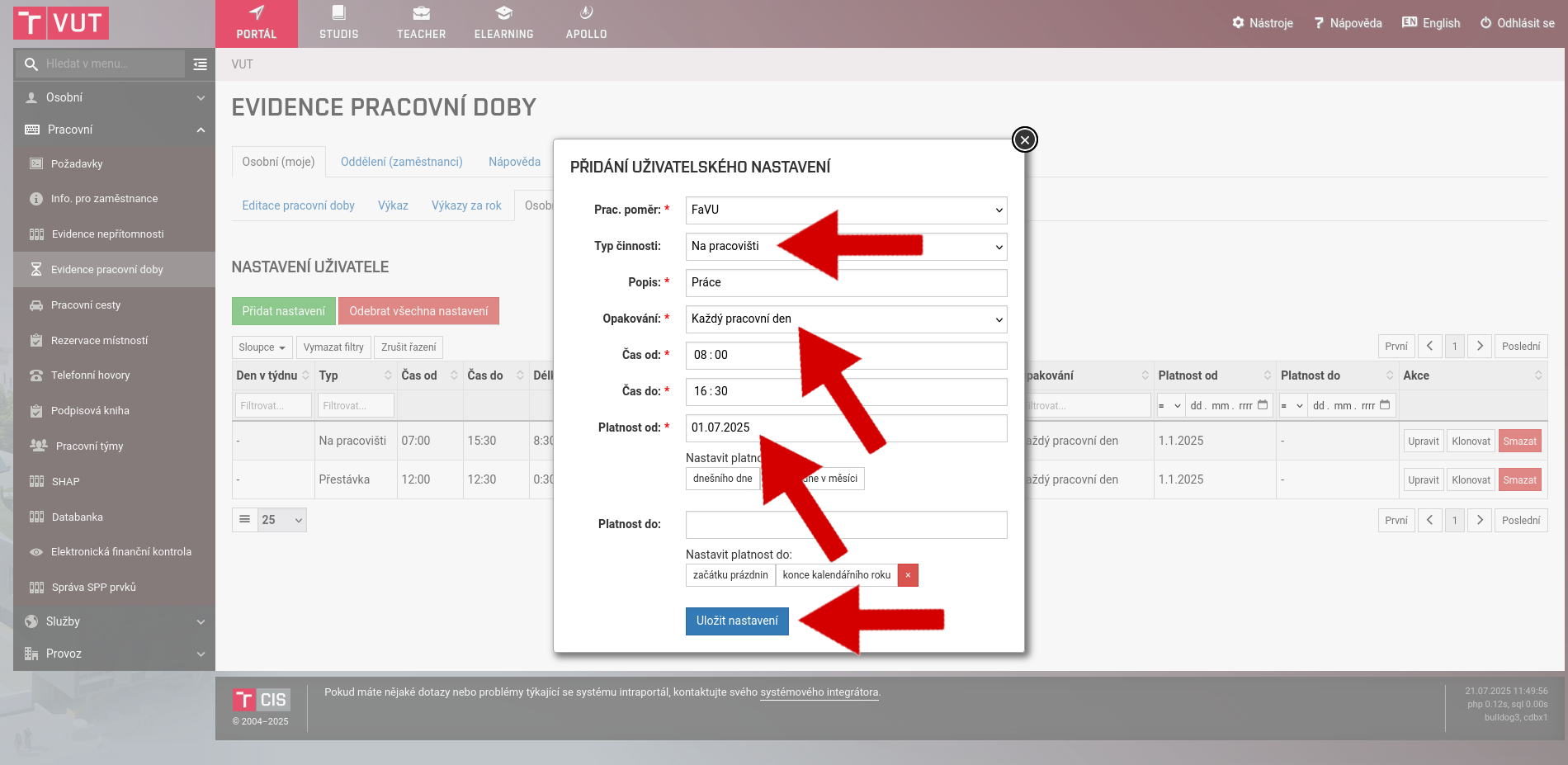
When creating these blocks, make sure to set the parameters Activity type and Validity from correctly. Do not fill in Validity to.
Records of working hours
The actual recording of working time is available on the main tab Edit working time. You don't have to fill it in every day, the standard practice is to fill in the past month at the beginning of the new month.
You can only edit the records a month back. So you can only edit attendance for June during July, for example.
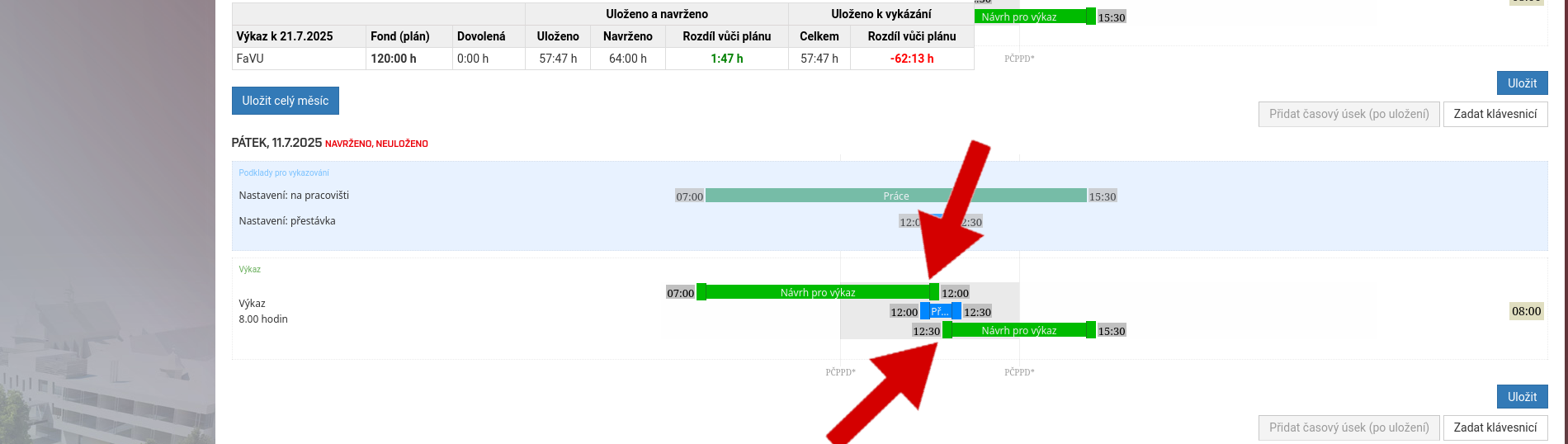
By moving individual blocks on a given day, you save your timesheet.
Always try to keep realistic times, for example, you've never had 10 days in a row where you've always arrived at work at 7:30.
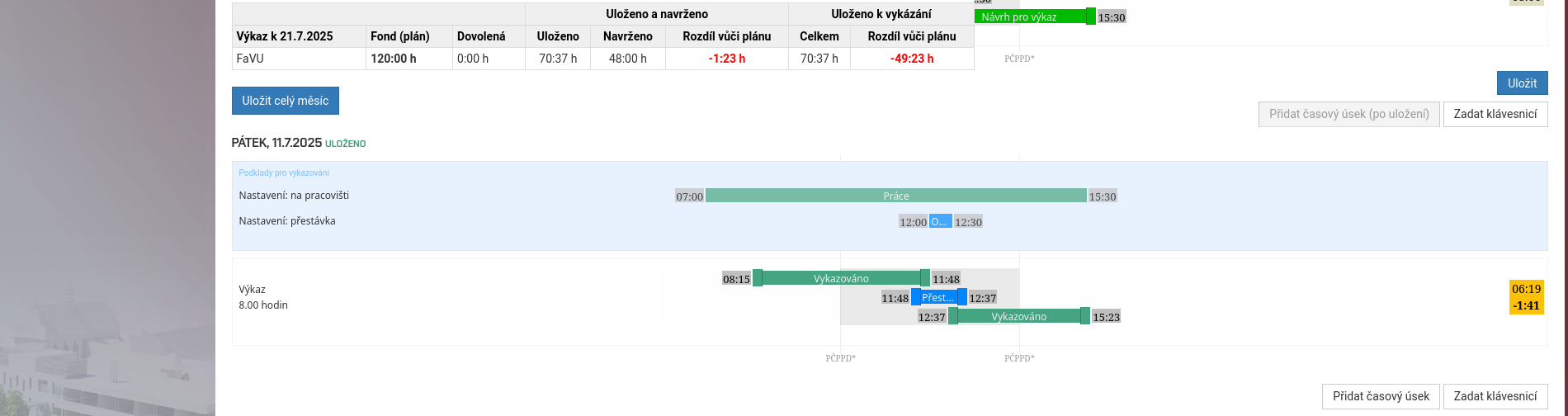
If you have filled in all days correctly, the system does not give you any error and you have 0:00 in the main table Difference to plan column, then the month report is OK.
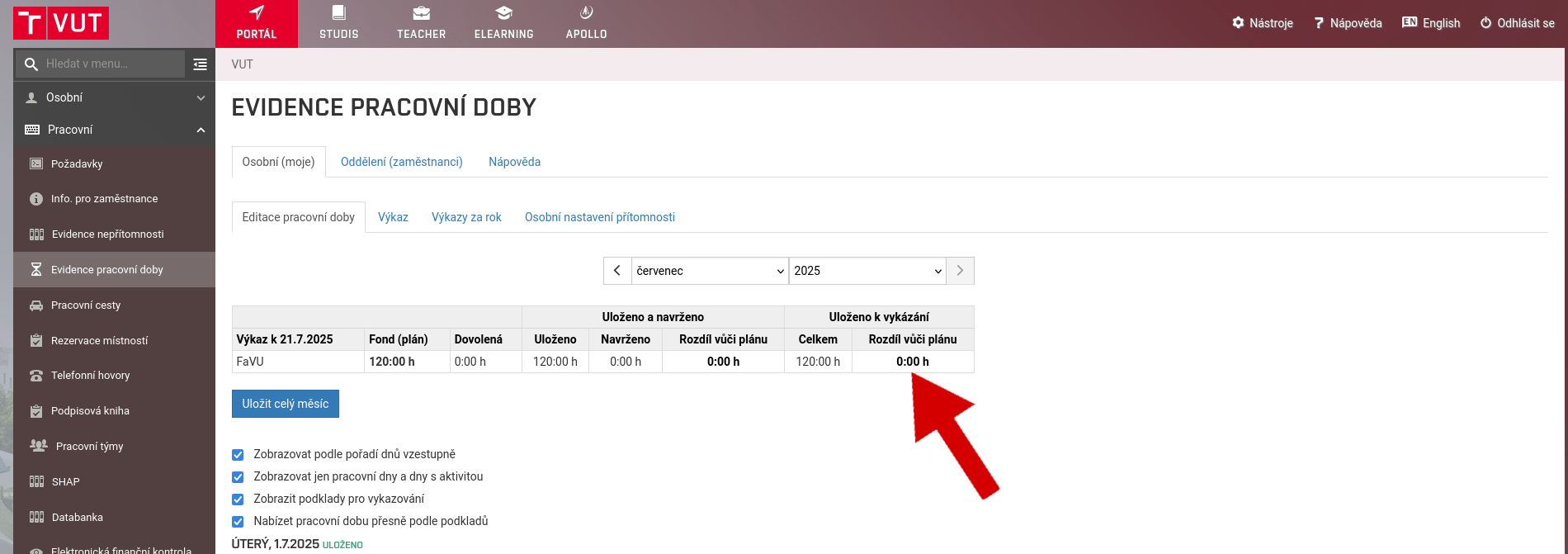
The system itself also works with your absence reports as well as the home office. The important thing is that you have each month reported without any error messages.
If you want to learn even more about timesheet reporting, be sure to check out the IS BUT Extended Support.